
Share this tool:
 |
Description:
Willow Voice is best understood as an AI dictation layer, not a meeting bot or a traditional transcription archive. The product is built to work wherever your cursor is, including apps like Slack, Gmail, Google Docs, Notion, Cursor, and ChatGPT, so you can press a hotkey, speak naturally, and drop cleaned-up text directly into the field you are already using. That is the real appeal: it tries to make voice feel like a practical keyboard replacement for everyday work instead of a separate record-then-edit workflow.
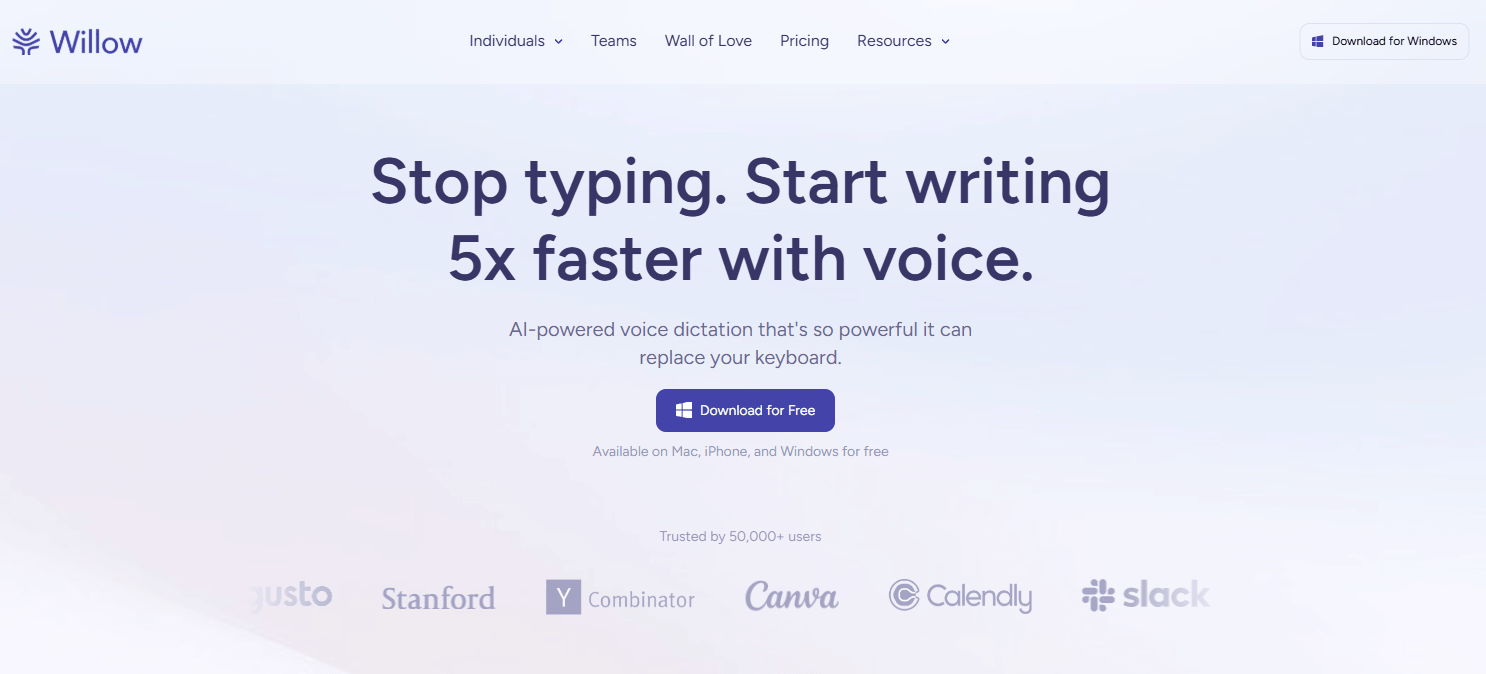
Willow is designed to work in basically any text field, not just inside one editor or one browser tab.
It can adapt tone and formatting by app or writing context, so email, notes, and messaging do not all come out sounding the same.
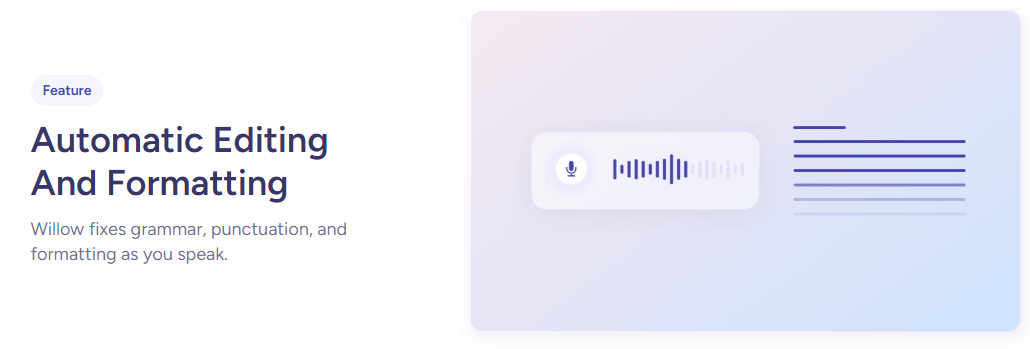
Willow handles punctuation, lists, paragraphs, spacing, and quotes automatically, with voice commands available when you want precise control.
You can teach it names, jargon, replacements, links, and repeated templates, while paid tiers add stronger personalization over time.
Team plans add shared dictionaries, shared shortcuts, centralized billing, team settings, and admin controls.
Private Mode is on by default, Enterprise adds SOC 2 Type II, HIPAA support, zero data retention options, SSO/SAML, and stronger admin privacy controls.
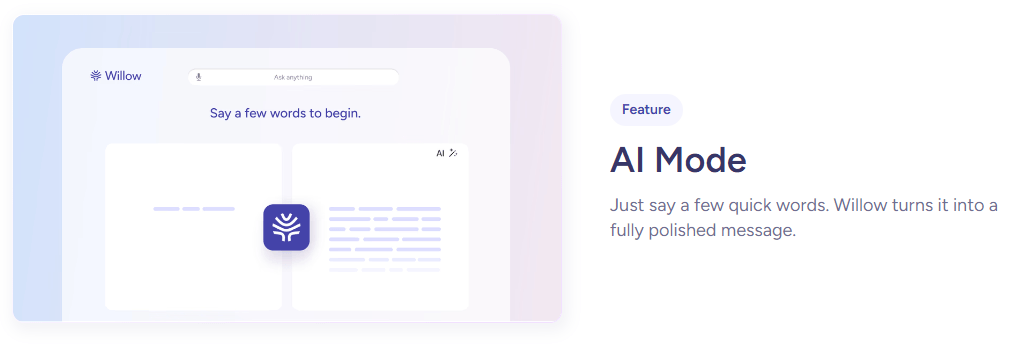
Willow is strongest when the job is short-to-medium-form writing that happens all day: emails, Slack replies, notes, docs, prompts, CRM updates, and code-adjacent text. Its core advantage is not just speech-to-text. It is speech-to-ready-to-send text, with automatic formatting, app-aware style matching, dictionary terms, shortcuts, and optional context awareness layered on top. That combination is what makes Willow more interesting than built-in dictation.
It is also unusually broad in where it runs. Willow currently supports Mac, Windows, and iPhone, works across the same account on those devices, and the current pricing docs list Android as coming soon. That cross-device footprint matters because a lot of dictation tools still feel strongest on one desktop OS and weaker everywhere else.
Willow’s desktop workflow is simple in the right way. You click into a text field, hold the default hotkey, speak, and release to paste formatted text. By default, that hotkey is the Function key, and you can also configure up to four custom hotkeys if fn does not suit your setup. For longer drafts, double-tapping the hotkey enters a hands-free mode so you do not have to keep a key pressed the whole time.
That sounds like a small thing, but it matters. A dictation tool lives or dies on friction. Willow’s design is clearly aimed at minimizing mode switching: no separate transcript window first, no “export” mentality, and no heavy command language required just to get decent text into Gmail or Slack. Based on the current help docs, the product is trying to keep you in flow rather than turning dictation into its own mini-editor.
On iPhone, the story is a little different. Willow runs as a custom keyboard, which gives it system-wide reach, but it also means you have to allow keyboard access, full access, and microphone permissions. That makes the mobile version more flexible than a standalone dictation app, but also a bit more dependent on iOS keyboard behavior and permissions than the desktop experience.
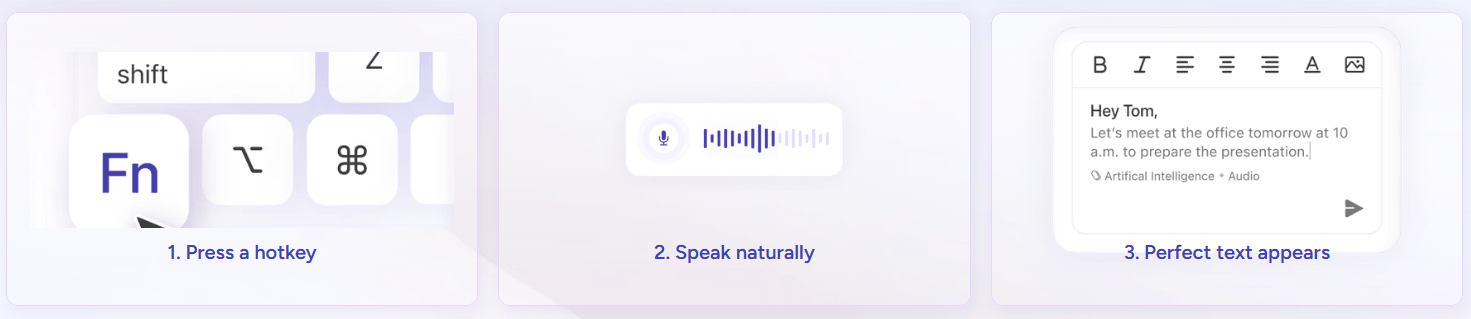
This is the part of Willow that matters most. The current product is not just trying to transcribe your words accurately. It is trying to produce text that already fits the situation. Willow’s help center says it can choose different writing styles for different apps and contexts, while its formatting layer handles punctuation, spacing, paragraphs, lists, and quotes automatically. In practical terms, that should reduce the “dictate first, clean up second” burden that makes a lot of voice tools feel slower than they promise.
Willow also gives you several ways to improve consistency. There is a personal dictionary, term replacement, shortcuts, synced dictionary terms across iOS and Mac, and on paid plans a smart memory layer that adapts to your writing style over time. Team plans extend that idea with shared dictionaries and shared shortcuts, which is genuinely useful for product names, internal terms, signatures, links, and repeated responses.
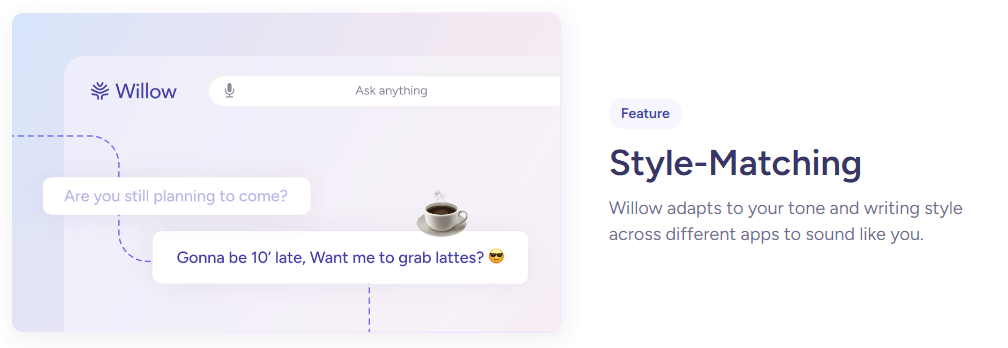
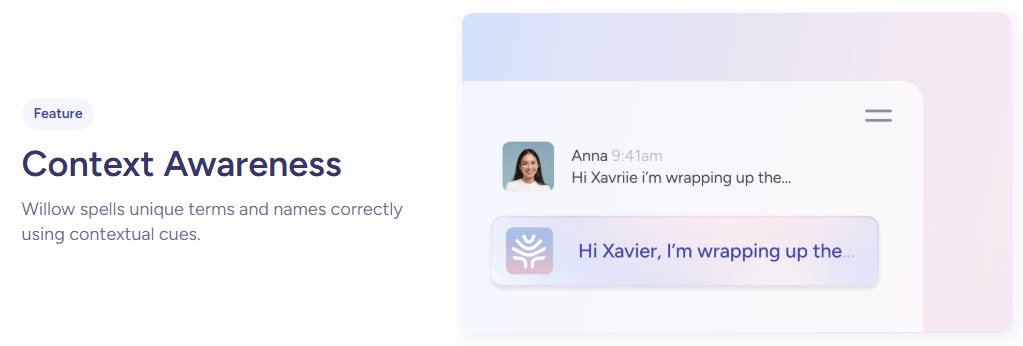
This is why Willow looks strongest for everyday written communication rather than pure transcription. If all you want is a verbatim transcript of speech, plenty of tools can do that. Willow’s real proposition is closer to “speak the idea, get polished text in the right format, and move on.”
Willow’s privacy model is one of the more important parts of the product. Its help center says Private Mode is the default, and in that mode no dictated text is collected, no transcript content or context-awareness data is saved on Willow servers, and no audio is stored on servers either. Transcript history is stored only on-device. There is also an optional “Help Willow Improve” mode that collects recognized transcript text in anonymized form, but still does not collect audio.
There is an important trade-off here. Willow also says it uses cloud-based AI models because they currently deliver better accuracy, speed, and responsiveness than local models. So this is not marketed as a purely local-first dictation tool, even though it is clearly privacy-conscious and now lists offline dictation as a Pro feature. That means Willow is best seen as a cloud-quality product with strong privacy guardrails, not as a fully local, privacy-above-all-else system.
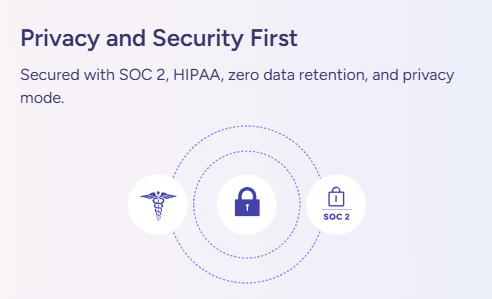
For teams and regulated environments, the story gets stronger. Current docs list SOC 2 Type II, HIPAA support, enforced privacy mode, zero data retention options, SSO and SAML integration, MSA/DPA support, and advanced admin controls on Enterprise. That is enough to make Willow more than a solo productivity app. It has a real workplace deployment angle.
- Inbox-heavy professionals: Founders, operators, sales, support, consultants, and managers who spend all day answering messages and drafting quick written responses.
- People who work across devices: Willow is more compelling if you switch between Mac, Windows, and iPhone rather than living on one desktop machine.
- Teams with shared terminology: Product teams, agencies, healthcare groups, legal teams, or customer-facing teams that need consistent names, templates, and phrasing.
- Users who speak prompts into AI tools: Willow explicitly positions itself for writing prompts to AI alongside emails and messages, which makes it a natural fit for people working in Cursor or ChatGPT all day.
- Add dictionary terms and replacements early. Names, acronyms, internal jargon, links, and repeated snippets are where Willow should gain value fastest.
- Use press-and-hold for short replies and hands-free mode for longer drafts. That is the cleanest way to match the workflow to the task.
- Turn on context awareness when accuracy matters more than maximum isolation, especially in technical or email-heavy writing. Turn it off when privacy sensitivity matters more.
- On iPhone, treat setup seriously. Keyboard access, full access, and microphone permissions are part of the product, not optional edge details.
- The first trade-off is that Willow is not a pure transcription or meeting assistant platform. The product pages and help docs are overwhelmingly centered on live dictation into active text fields. That is excellent for writing, but it also means Willow is not really pitched as your long-form transcript archive, meeting intelligence hub, or audio research workspace.
- The second trade-off is mobile friction. The iPhone version is ambitious because it works as a custom keyboard across apps, but that same design means permissions, keyboard switching, and occasional troubleshooting are part of the experience. Third-party keyboards on iOS are never as invisible as first-party system features, and Willow’s own help docs acknowledge that setup and refresh steps can matter.
- The third trade-off is history and sync behavior. Willow stores transcript history on-device, which is good for privacy, but it also means you do not get a cloud-synced archive of past dictations when you move between devices. People who want a persistent, searchable transcript library may find that limiting.
- The fourth trade-off is platform completeness. Android is still listed as coming soon, so Willow is broad today, but not yet fully everywhere.
Willow Voice looks strongest as an everyday writing accelerator for people who want to replace a meaningful amount of typing with speech across email, chat, docs, and AI tools.
Its biggest strengths are cross-app dictation, context-aware formatting, personalization, and a more serious team/privacy layer than many voice tools offer.
The main caveat is that the best experience depends on embracing Willow’s workflow, permissions, and setup choices rather than expecting a completely local, zero-friction, fully synced dictation system out of the box.
TAGS: Speech to Text
Related Tools:
Transforms spoken words into organized text

Generates subtitles and dubbing in multiple languages
Specializes in dubbing videos into multiple languages

Generates and translates accurate subtitles

Instantly transcribes, searches, and analyzes spoken language
Captures, summarizes, and organizes your notes and recordings