
Share this tool:
 |
Description:
- Introduction
- Sample Prompts You Can Try First
- What Google AI Studio Actually Is
- Where Google AI Studio Is Strongest
- Strong Features and Capabilities
- Models and Platform Layers That Matter
- Prompting and Output Control
- Build Mode and Prototype Workflow
- Media and Real-Time Workflows
- Best Use Cases
- Limitations and Trade-Offs
- Final Takeaway
Google AI Studio is a developer-friendly workspace for experimenting with Gemini models before you build with them. It is part playground, part prompt lab, part prototype builder, and part API handoff tool. The main value is not only chatting with Gemini. It is testing prompts, changing model settings, using tools like structured output or code execution, trying media workflows, and then exporting code when the prompt is ready for a real app.
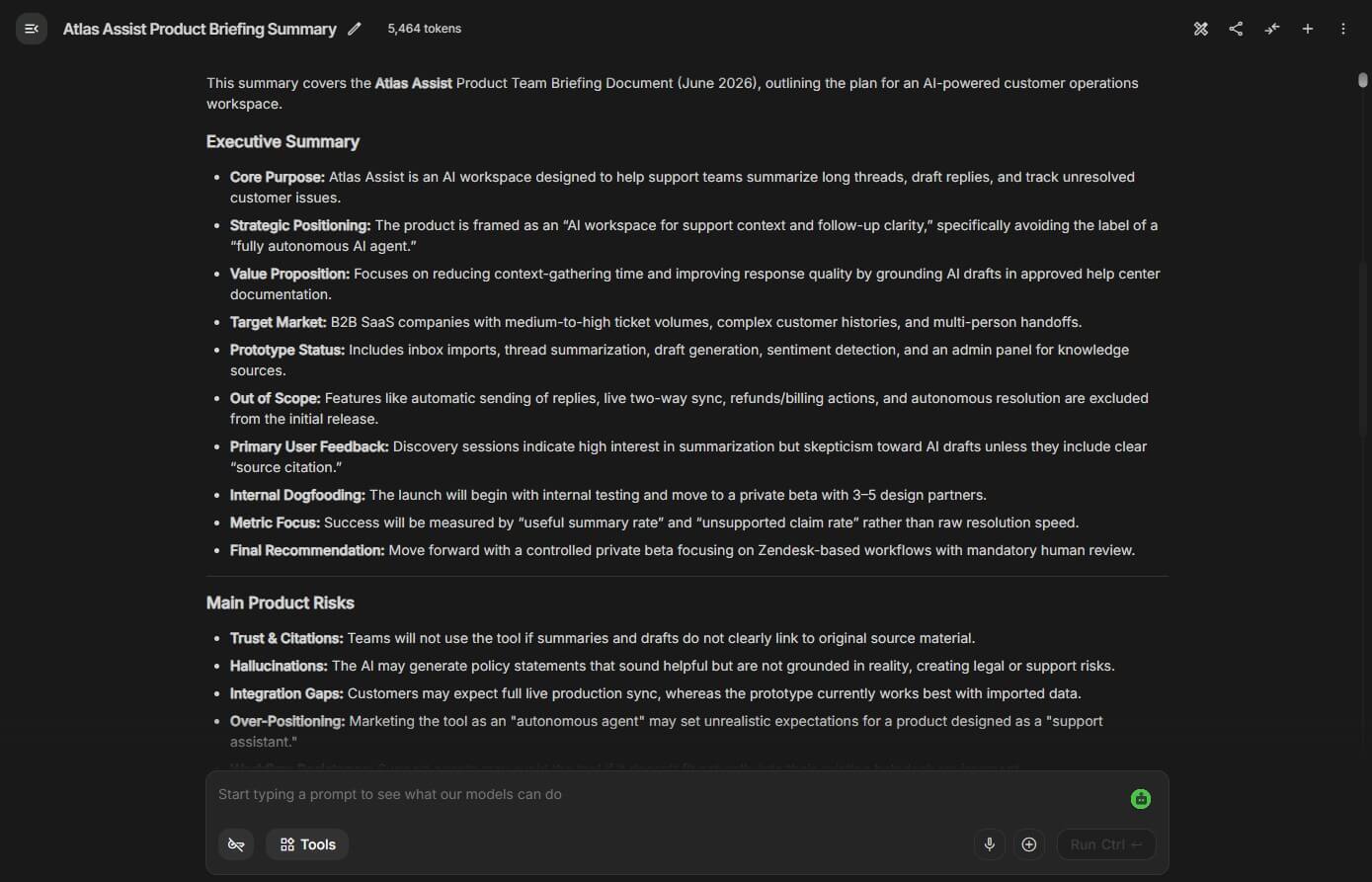
Before using this prompt: Upload a long document, transcript, PDF text, or report.
Summarize this document for a product team. First give a 10-bullet executive summary, then list the main risks, open questions, key decisions, and any action items. Quote only short phrases when needed and do not invent missing details.
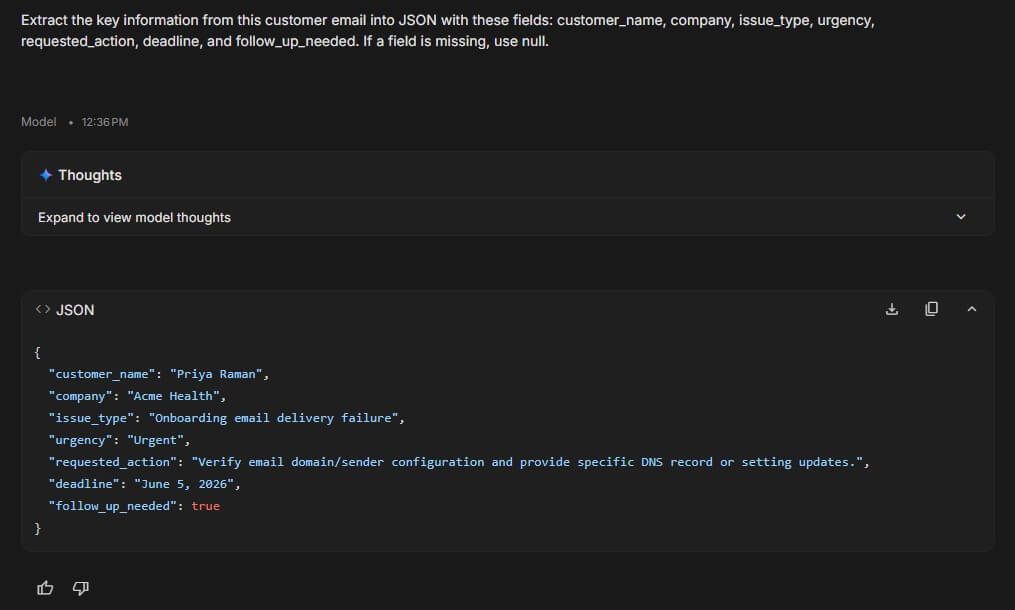
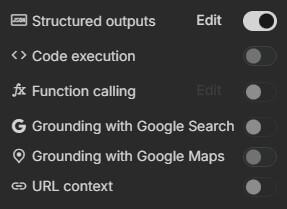
Before using this prompt: Turn on structured output if you want a predictable schema.
Extract the key information from this customer email into JSON with these fields: customer_name, company, issue_type, urgency, requested_action, deadline, and follow_up_needed. If a field is missing, use null.
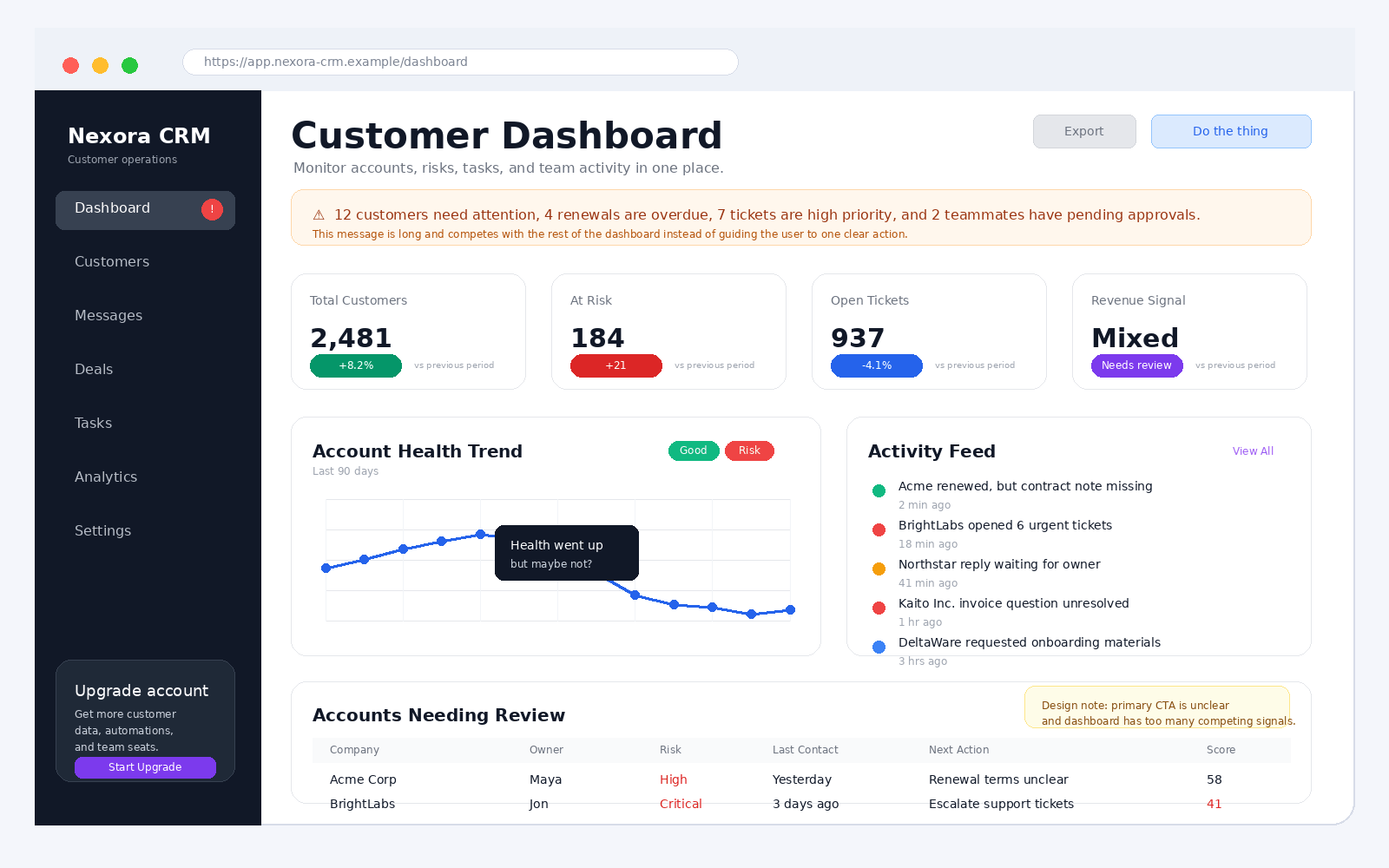
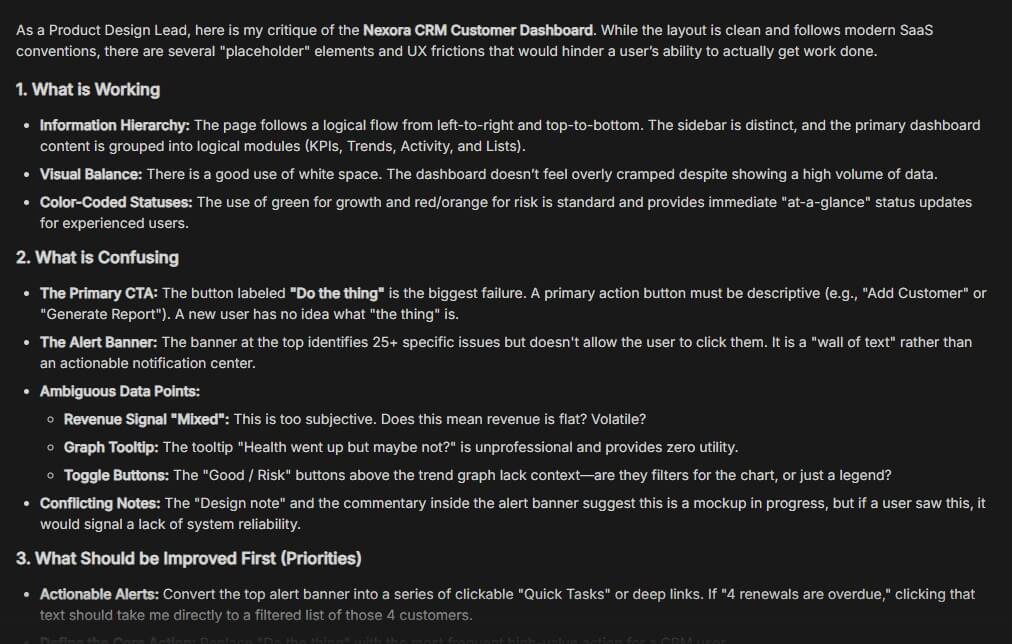
Before using this prompt: Upload a screenshot, product image, UI mockup, or chart.
Review this image as if you are a product design lead. Identify what is working, what is confusing, what should be improved first, and what changes would make it easier for a new user to understand.
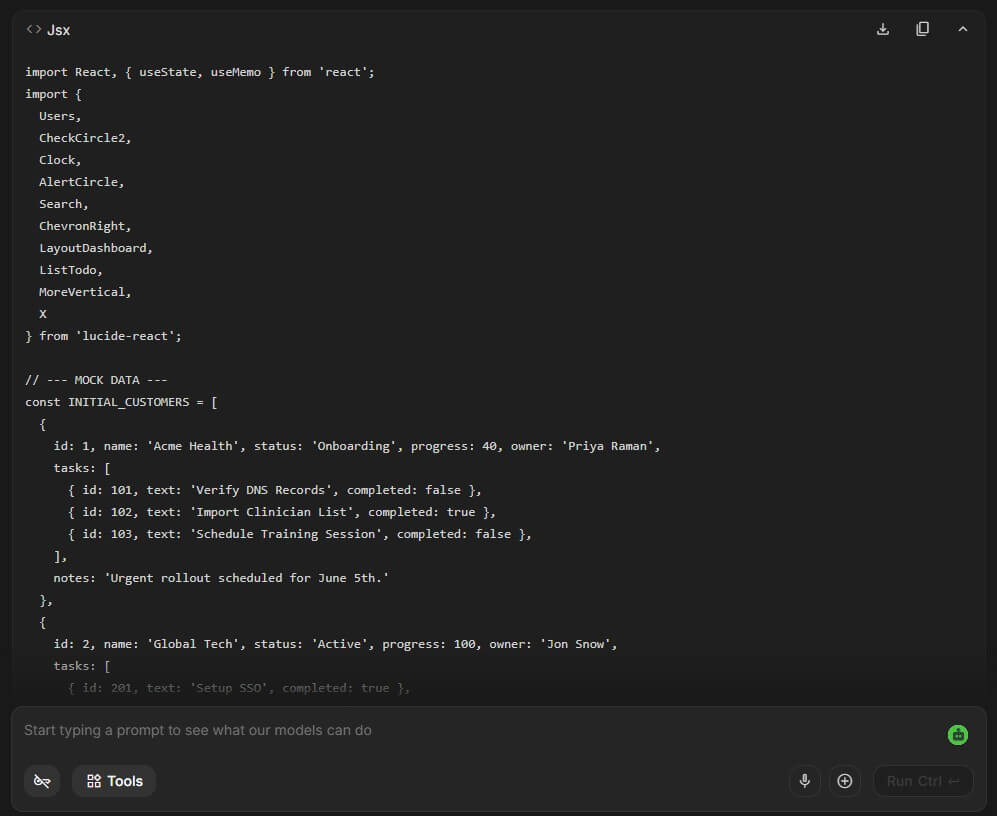
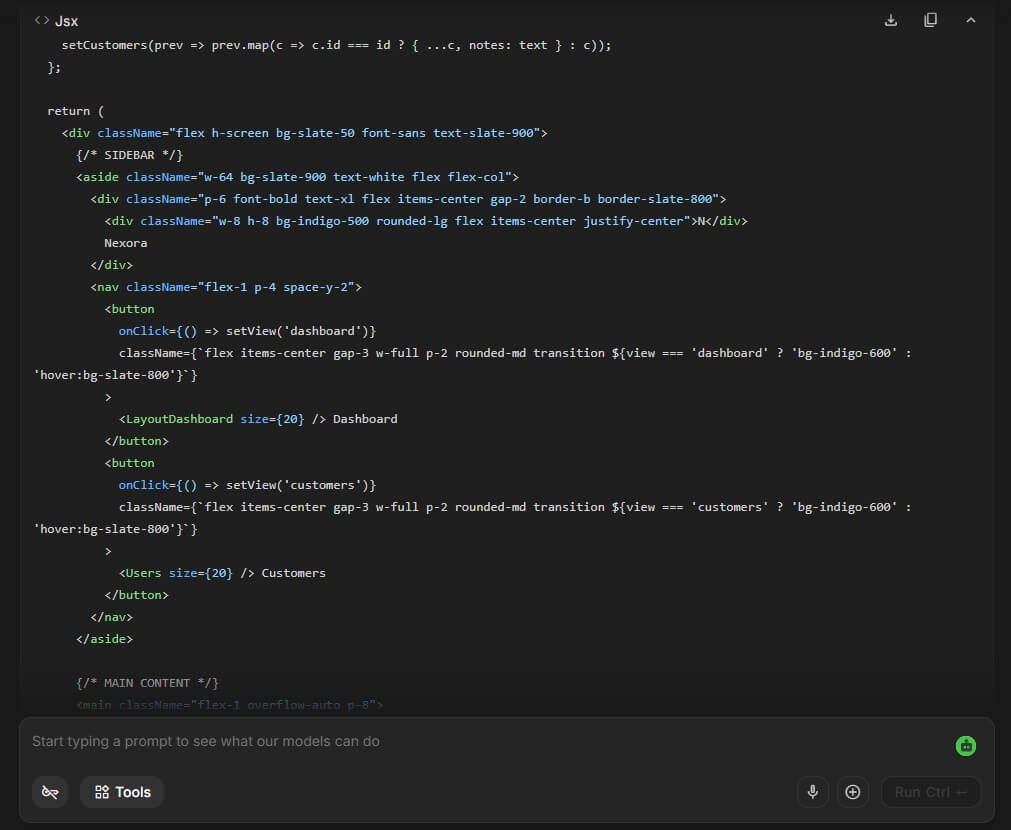
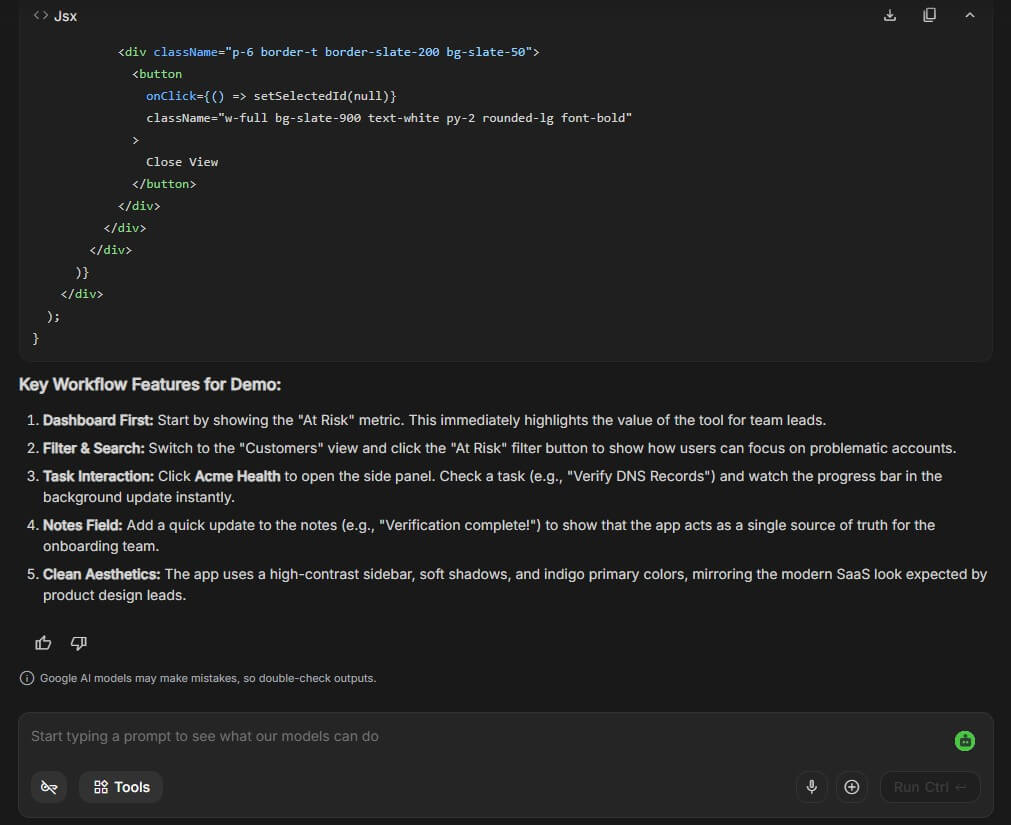
Create a simple web app for tracking customer onboarding tasks. Include a dashboard, task list, customer detail view, status filters, and a notes field. Use a clean SaaS interface and make the main workflow easy to demo.
Create a realistic product hero image for a modern AI writing app. Show a laptop on a clean desk with a subtle interface preview, soft natural lighting, shallow depth of field, and a calm premium startup feel.

These are better tests than generic “write a blog post” prompts because they show what AI Studio is built for: context handling, multimodal reasoning, structured output, code-assisted analysis, model behavior testing, and app prototyping.
Google AI Studio is the front door for working with Gemini models before you commit to an API workflow. You can open a chat prompt, adjust system instructions, test multi-turn behavior, change settings, and then use “Get code” when you want to move the same idea into an application. The official quickstart describes AI Studio as a place to quickly try models and prompts, then select code in a preferred programming language for the Gemini API.
That makes it different from the consumer Gemini app. Gemini is for everyday assistant use. AI Studio is for people designing AI behavior: developers, product managers, founders, researchers, educators, and technical creators. It gives you more control over the prompt environment, the model, and the handoff to code.
The strongest use case is prompt-to-prototype work. You can test how a model behaves, refine the system instructions, add examples, try tools, upload files or media, and then build toward something more repeatable.
Google AI Studio is strongest when you need to understand how Gemini will behave inside a product. A chatbot answer is one thing. A production feature needs clearer instructions, consistent output, safety choices, structured response formats, and predictable handling of edge cases.
The Run settings panel is important here. Google’s quickstart says AI Studio lets users adjust model parameters, safety settings, and tools such as structured output, function calling, code execution, and grounding. That gives builders a more realistic test environment than a standard chat window.
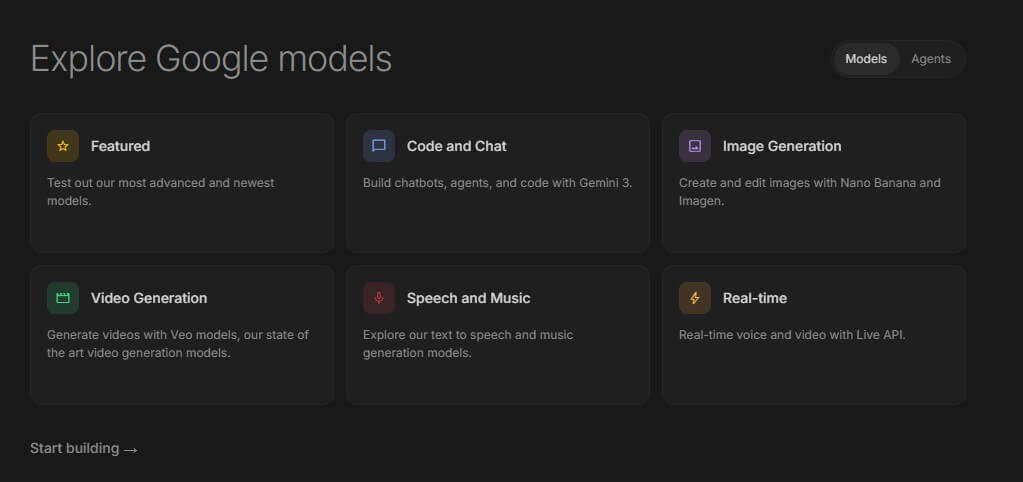
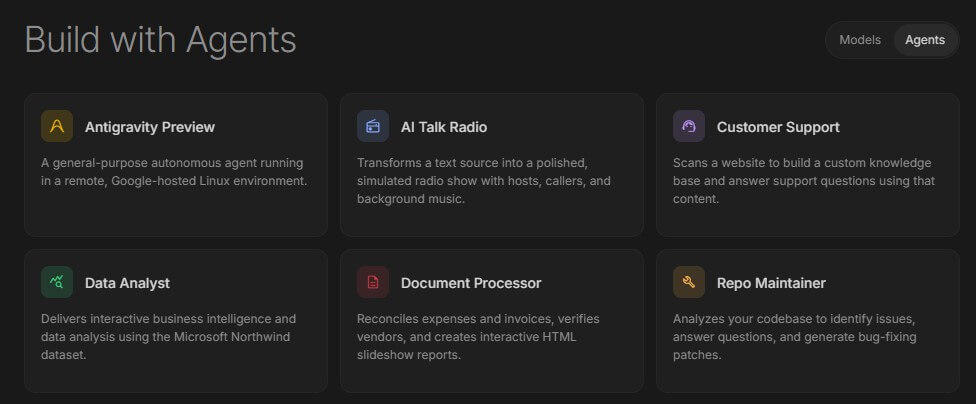
AI Studio also works well for multimodal projects. Gemini models can handle text, images, audio, video, and other media depending on the selected workflow and model. The model list now includes Gemini language models, live audio models, TTS models, image models such as Nano Banana and Imagen, video models such as Veo, music models such as Lyria, and tool-focused models for research, embeddings, and computer use.
| Feature | What it does | Why it matters |
|---|---|---|
| Chat Prompt Playground | Lets users test multi-turn prompts and system instructions | Useful for designing assistants, support bots, tutors, and workflow helpers |
| Run Settings | Adjusts model behavior, safety settings, and tools | Gives more control than a normal chatbot |
| Structured Output | Forces responses to match a JSON schema | Useful for extraction, classification, and app workflows |
| Code Execution | Lets Gemini generate and run Python code | Helpful for math, CSV analysis, and code-based reasoning |
| Build Mode | Generates and iterates on app prototypes from prompts | Good for quick demos and early product ideas |
| Media Generation | Supports image, video, audio, and other creative model workflows | Makes AI Studio broader than a text-only prompt lab |
The model picker matters because Google AI Studio is not tied to one model type. Current Gemini API documentation lists Gemini 3 models, Gemini 2.5 models, generative media models, audio models, tool models, embedding models, and previous models that developers may need to migrate away from.
| Layer | Best for | Practical meaning |
|---|---|---|
| Gemini 3.5 Flash | Agentic, coding, and sustained high-performance tasks | Good starting point for many serious text and coding workflows |
| Gemini 3.1 Pro | Advanced reasoning, complex tasks, and vibe coding | Better when quality and deeper reasoning matter more than speed |
| Gemini 2.5 Flash | Low-latency, high-volume reasoning tasks | Useful for fast assistants and app features |
| Gemini 2.5 Pro | Complex reasoning and coding | Still relevant for deeper analysis and careful work |
| Nano Banana / Nano Banana Pro | Image generation and editing | Best when visual generation is part of the workflow |
| Veo 3.1 Preview | Cinematic video generation | Useful for experimental video workflows |
| Live API models | Real-time voice and vision interactions | Relevant for voice agents and interactive apps |
The important thing is not memorizing every model name. It is choosing the right model for the job. Use stronger reasoning models for complex analysis. Use faster models for repetitive workflows. Use image or video models only when the output is visual. Use Live API workflows when latency and conversation flow matter.
Google’s prompt guidance makes a useful point: prompt engineering is iterative. The documentation presents prompt design as a process of writing, testing, observing the response, and refining from there. That is exactly how AI Studio should be used.
A good AI Studio prompt usually has four parts: role, task, context, and output format. For example, “Act as a customer support QA reviewer” gives the role. “Review these tickets” gives the task. “Use this policy document” gives context. “Return JSON with score, reason, and recommended action” gives output format.
Structured output is one of the most useful controls for app builders. Google’s structured output docs say Gemini can be configured to follow a provided JSON Schema, which helps produce predictable, type-safe responses for extraction, classification, and agent workflows. This matters because apps often need clean fields, not elegant prose.
Build Mode is one of the more interesting parts of AI Studio because it moves beyond prompt testing. Google says users can create and iterate on full-stack apps with a prompt, use chat or annotation mode to request changes, edit code directly, share or deploy creations, browse an app gallery, and export projects to GitHub or a ZIP file for local work.
This is useful for early product work. A founder can prototype a dashboard. A PM can mock up an internal tool. A developer can generate a starting point, inspect the code, and continue elsewhere.
The caveat is that generated apps still need real review. Build Mode is good for first versions, demos, internal concepts, and fast iteration. It should not be treated as a replacement for engineering standards, security review, accessibility testing, or production QA.
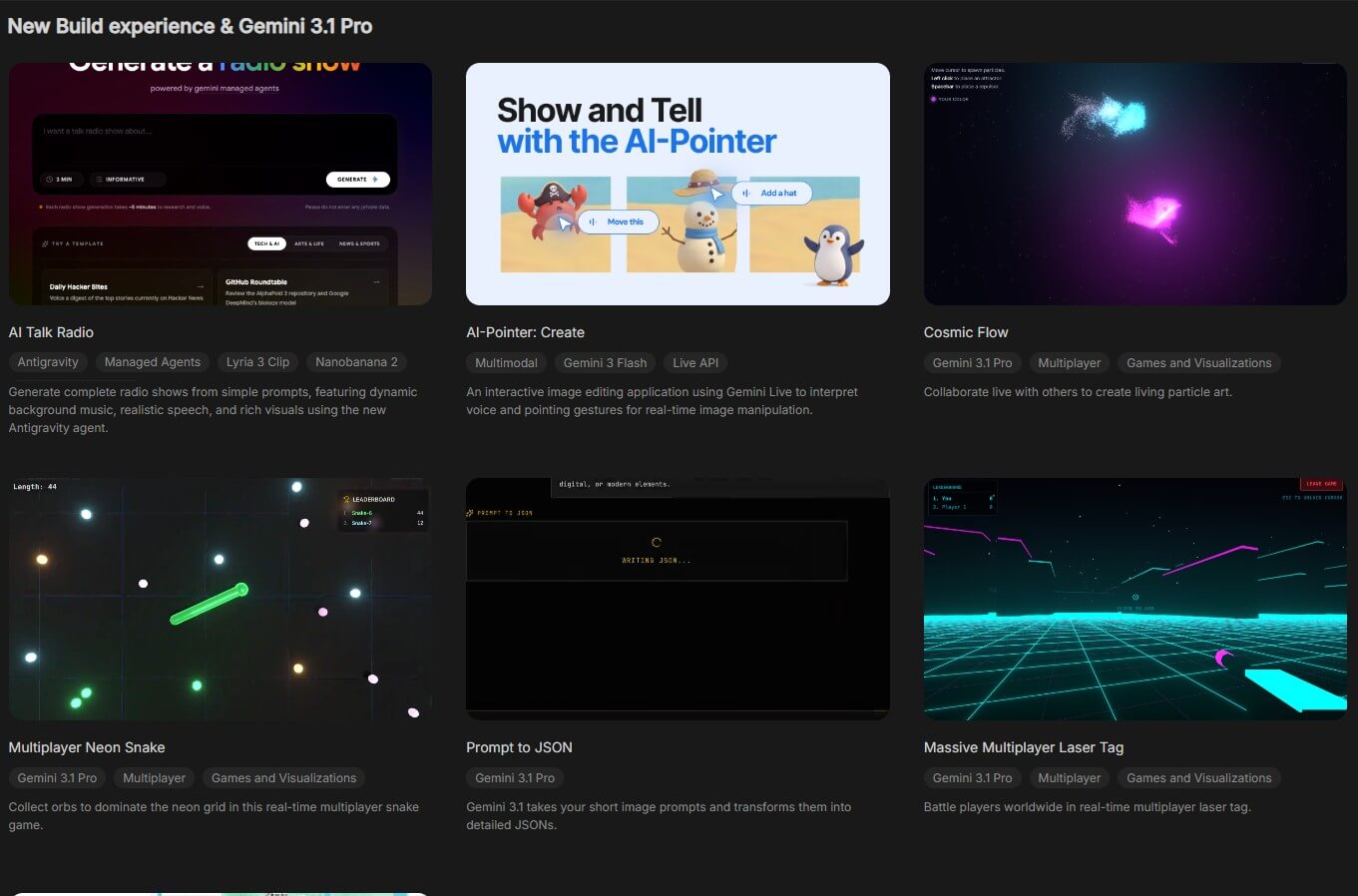
AI Studio is also becoming a broader creative and multimodal workspace. Gemini image generation supports text-to-image and image-plus-text workflows, including cases where the model can return interleaved text and images. Google’s image guidance emphasizes descriptive scene prompts rather than disconnected keyword lists.
For voice and real-time interfaces, the Live API is more specialized. Google describes it as enabling low-latency voice and vision interactions with Gemini, processing streams of audio, images, and text for spoken responses. It also supports features such as multilingual conversation, barge-in, tool use, audio transcription, and proactive audio controls.
This makes AI Studio useful for testing voice agents, tutors, support assistants, interactive demos, and multimodal app concepts. It is not only a place for text prompts anymore.
Google AI Studio is a strong fit for developers testing Gemini API behavior before coding a feature. It is also useful for product teams designing assistants, founders prototyping AI apps, educators building tutoring flows, analysts testing structured extraction, and creators exploring Gemini’s image or video tools.
It works especially well for: customer support assistants, document analysis tools, internal workflow bots, CSV analysis, UI feedback, app prototypes, image generation tests, live voice demos, and prompt libraries for repeatable tasks. It is less ideal for users who only want a simple chatbot. For that, the consumer Gemini app is easier. AI Studio is better when you care about settings, model choice, API handoff, schema control, and prototype behavior.
Google AI Studio gives useful control, but it still requires prompt discipline. Vague prompts can produce vague results. Long conversations can also grow large because each message becomes part of the prompt history, and Google’s quickstart notes that conversational prompts may eventually hit a model’s token limit.
Code execution is useful, but it has limits. Google says Gemini can execute Python, but not run other languages through the code execution tool, and the code environment has a maximum runtime of 30 seconds. It also works best with text and CSV files.
Preview models also need care. Google’s model documentation says stable models usually do not change and most production apps should use a specific stable model, while preview models can come with tighter limits and deprecation timelines.
Finally, AI Studio is powerful because it is close to development. That also means it can feel technical. Non-developers can still use it, but the best parts appear when you understand prompts, schemas, model selection, files, app prototypes, or API handoff.
Google AI Studio is one of the best places to design, test, and prototype with Gemini models before building a real product. Its strongest value is the mix of prompt testing, model control, structured output, code execution, media workflows, Build Mode, and Gemini API handoff. It is best for developers, product teams, technical founders, educators, analysts, and creators who want more control than a normal chatbot gives. The main caveat is that AI Studio rewards careful setup. Strong prompts, clear schemas, model choice, and human review make the difference between a quick demo and something ready to build on.
TAGS: Productivity
Related Tools:
Email assistant that automatically generates replies

Analayzes key information from documents

Transforms screen recordings into high-quality product videos

Creates customized educational assessments

AI meeting assistant that tracks participation

Automatically plans and organizes your schedule