

Share this tool:
 |
Description:
- What Is Fenestra?
- A Workflow Built Around the Design You Already Have
- Rendering From Sketches and References
- 3D Models Give Fenestra a Stronger Foundation
- Realtime Is the Feature to Watch
- Editing Without Starting Over
- Enhance and Video Finish the Presentation
- Best Use Cases
- Limitations and Trade-Offs
- Final Takeaway
Fenestra is an AI visualization platform made specifically for architecture and interior design. It accepts more than text prompts. Architects can work from sketches, reference photos, existing renders, PDF drawings, and 3D models, then use AI to develop those inputs into presentation visuals.
That architectural focus is the main reason Fenestra stands apart from a general image generator. It isn't only trying to produce an attractive building image. The workflow is designed around preserving an existing design, exploring it visually, correcting specific areas, and eventually turning the result into something suitable for a client presentation.
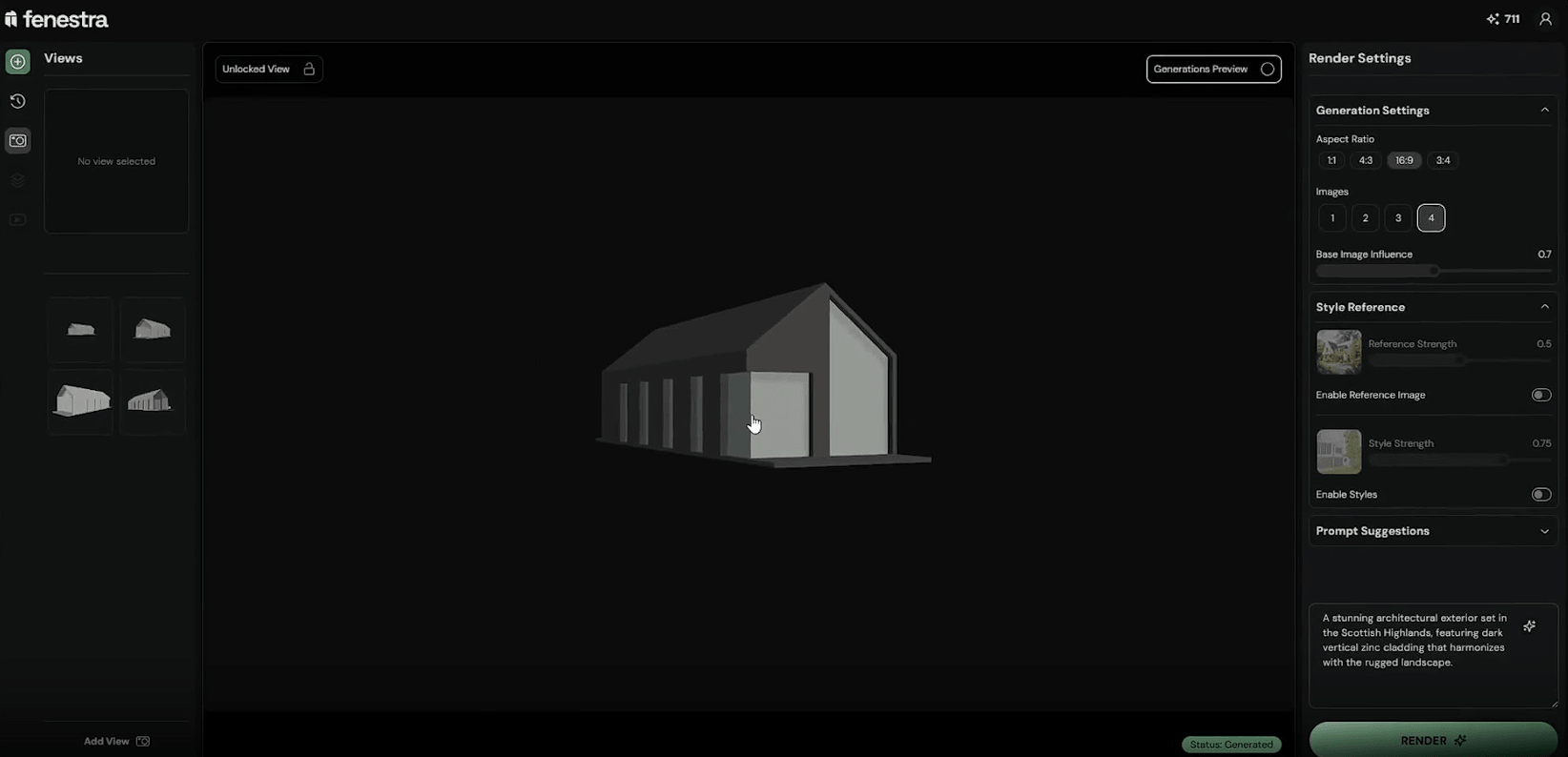
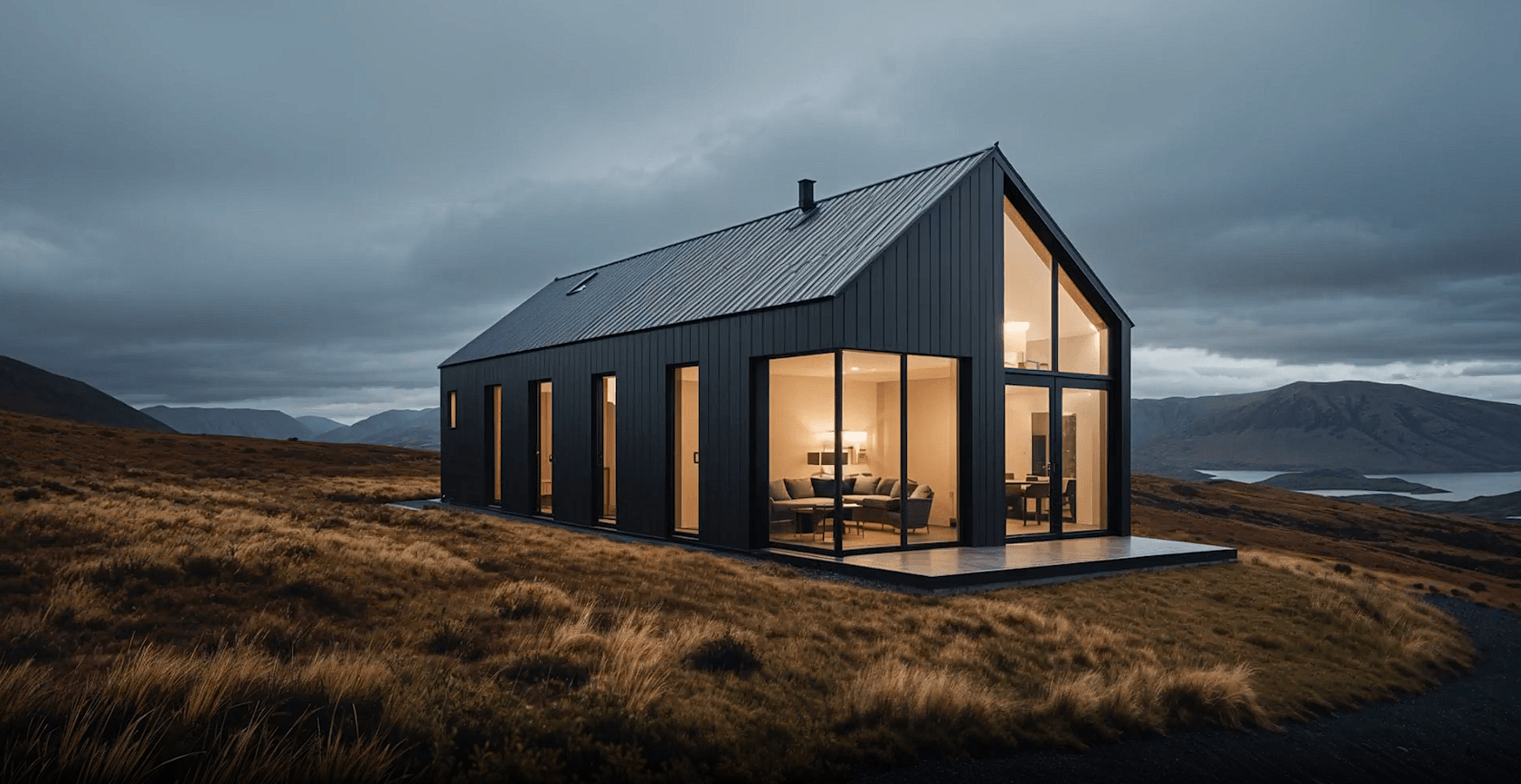
Fenestra Studio is divided into Image, Edit, Realtime, Enhance, and Video, with direct support for 3D models as part of the editing and rendering workflow. Projects retain previous generations and inputs as you move between tools.
| Tool | Where It Fits |
|---|---|
| Image | Initial renders from prompts, sketches, and references |
| Edit | Material changes, object replacement, expansion, and refinement |
| Realtime | Live exploration from sketches, images, or 3D geometry |
| Enhance | Higher-resolution finishing and added detail |
| Video | Camera movement and animation from still renders |
| 3D workflow | Rendering directly from architectural geometry |
The advantage is continuity. You don't have to generate an image, export it to another AI service for editing, move elsewhere for upscaling, and then find another tool to animate it.
The Image workspace provides the easiest starting point. You can begin with a template or create from scratch, then combine prompts with sketches or reference imagery. Fenestra currently uses model families including Nano Banana and Flux for image generation.
Sketch-to-render is particularly useful for architectural work. A rough drawing can establish the important geometry, while the prompt handles materials, location, lighting, landscaping, and presentation style.
Fenestra recommends keeping prompts fairly straightforward but specific. Rather than describing every pixel, tell it what the source represents and what architectural treatment you want.
This works better for design development than starting from text alone because the sketch remains part of the visual brief.
A more serious workflow starts with actual geometry. Fenestra accepts GLB, FBX, and 3DM files, so Rhino models can be imported directly, while geometry from other architectural applications can enter through supported formats.
Inside the browser, users can orbit and position the model, save camera views, and adjust field of view, lighting, time of day, environment strength, and environment rotation before generating a render. Perspective and orthographic cameras are available.
This is a better foundation when preserving design intent matters. AI still interprets materials, atmosphere, vegetation, and finer visual details, but the underlying model gives it stronger spatial information than a prompt alone.
Realtime is one of Fenestra's more distinctive tools. It places the source and AI output side by side, then updates the visualization as you move the camera, alter the prompt, or switch styles. It works with 3D models as well as sketches, renders, and ordinary 2D images.
Preset styles include options such as photorealistic, sketch, clay, watercolor, and vector. Quality can be adjusted between Turbo, Balanced, and Hi Def depending on whether you're exploring ideas or preparing a stronger output.
This is where Fenestra feels less like a render button and more like an ideation environment. During an early design discussion, you can try different materials or viewpoints without preparing a conventional render after every change.
Architectural AI becomes frustrating when changing one element also changes everything else. Fenestra's Edit tools try to make revisions more controlled.
Edit Area modifies a selected region while considering the original image. Replace Area deliberately substitutes the selected content. Expand extends the scene into a different aspect ratio. Camera Control can even generate alternative viewpoints from a single image using an orbit control, without requiring the original 3D model.
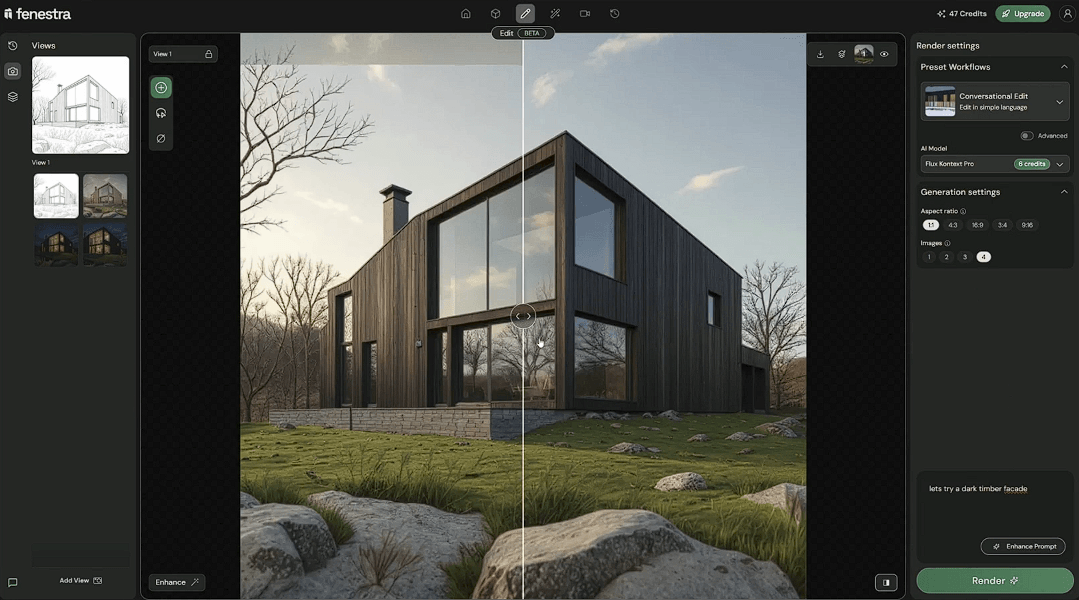
That makes practical tasks possible, such as changing facade materials, removing furniture, adjusting part of an interior, or converting an existing composition into a wider presentation image.
Camera Control is useful for exploration, but generated viewpoints shouldn't be mistaken for geometrically verified views. For that, the original 3D model remains the better source.
Once a render works, Enhance can increase resolution and introduce additional detail. Fenestra offers Crystal Upscaler, Clarity, and Real-ESRGAN, with different balances between added detail and straightforward enlargement.
Video takes the finished still further. Camera presets include pans, zooms, dollies, vertical movement, orbiting, and static shots. Start and end frames can also guide transitions between two visuals, which is useful for changes such as day to night or one design state to another.
This makes animation useful for client presentations and social content without requiring every visualization to become a full traditional walkthrough.
Fenestra is particularly well suited to sketch-to-render work, early material studies, 3D-model visualization, interior concepts, virtual staging, facade exploration, competition imagery, client presentations, and architectural animations.
Realtime is useful during early exploration, while Edit becomes more valuable once the overall composition is settled. Enhance and Video make more sense toward the presentation end of the process.
That separation gives each stage a purpose rather than expecting one generation model to solve the entire project.
Fenestra produces visualization, not technical validation. A convincing facade, interior, landscape, or alternative camera angle can still contain AI-invented details. Materials and objects should therefore be checked against the actual project before an image is treated as an accurate representation.
Generative enhancement introduces a similar issue. Additional detail can make a render look richer without making that detail more architecturally correct.
The platform also has more depth than a basic render generator. Architects interested only in quick concept images may not need Realtime, model controls, selective editing, enhancement, and video.
Fenestra is strongest when there's already a design worth preserving. Sketches, reference imagery, and especially 3D geometry give its AI something concrete to work from, while Realtime and Edit provide ways to explore the design without continually rebuilding it.
It's best suited to architects, interior designers, visualization studios, and students who want faster iteration between concept and presentation. Its main caveat is also important for architectural work: visual plausibility isn't technical accuracy, so the generated result should support design judgment rather than replace it.
TAGS: Generative Art
Related Tools:

Creates personalized images and avatars
Generates unique variations of images

Social media management tool for content scheduling

AI-powered photo editing toolkit

Generates outfit combinations

Creates images based on objects